
Stock quantities
See current quantities and parts at or below their saved minimum level. Keep common stock separate from a one-time part bought for a particular repair.
PARTS INVENTORY
Track stock quantities, low-stock parts, job orders and receiving in FieldOpsX Pro. Keep part costs, selling prices and repair jobs connected.
Android on Google Play. iPhone and iPad access through TestFlight.
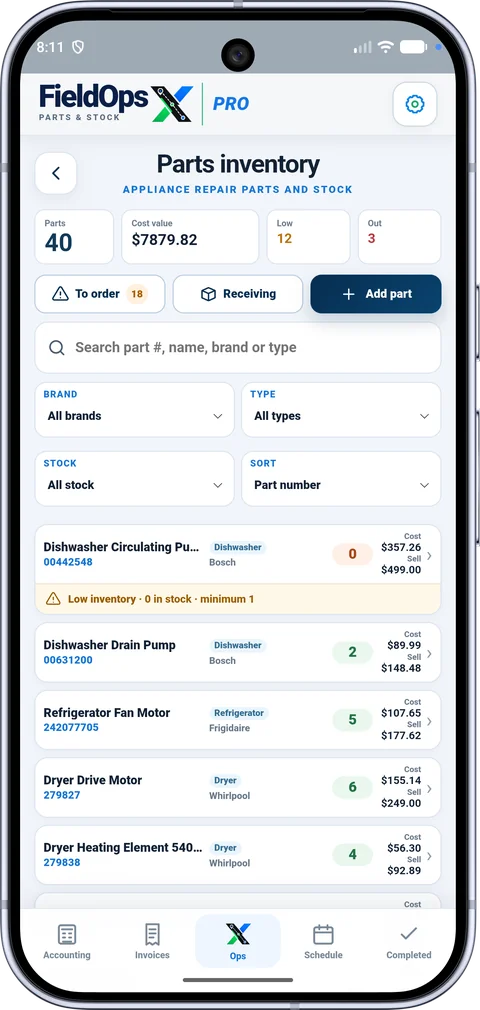
FieldOpsX Pro parts inventory stores the part number, description, brand, appliance type, stock quantity and minimum quantity. Keep purchase cost and selling price separate. Search and filter stock when finding the part you need for a service job.
See current quantities and parts at or below their saved minimum level. Keep common stock separate from a one-time part bought for a particular repair.
Use part numbers, brand and appliance type to identify stock. Purchase cost and selling price describe different sides of the job.
Add a part to the job where it is needed and keep the repair details available while ordering or arranging a return visit.
Appliance repair workflow →The To order view brings together low stock that needs replenishing and parts needed for specific jobs. After an order is placed, use the Receiving workflow to follow its arrival. Mark the part received when it arrives so you can plan the next step for the repair.
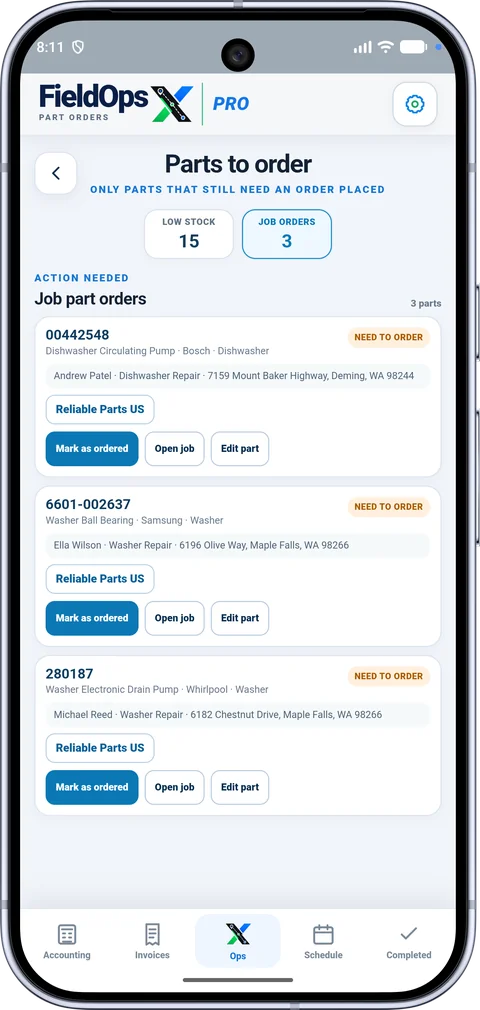
Search your inventory by part number, name, brand or appliance type. Check the quantity before deciding to purchase.
Keep the needed part attached to the repair. Mark the order placed and follow it through receiving.
Use the part on the repair and review the service and parts charges on the customer invoice. Record a supplier purchase separately if needed.
Job costs and receipts →Parts inventory answers what you have and what the repair needs. A supplier receipt records what you paid. A customer invoice records what you charge. FieldOpsX Pro keeps these related to the work without treating a parts price list as a stock ledger. Wave Accounting and QuickBooks Online connections handle their supported accounting workflows.
No. Stock quantities and minimum levels are held in FieldOpsX Pro. The Wave connection is for its supported accounting actions.
Yes. The ordering workflow distinguishes stock replenishment from parts needed for a specific job.
No supplier ordering automation is promised here. Use the status to record an order you placed with your supplier.
Yes. See monthly and annual pricing for the core workflow and separate provider costs.
PROFESSIONALLY BUILT FOR OWNER-OPERATORS
Choose the workflow that fits your business, then try it with your own working day.