
Wave Accounting
Understand the supported connection and accounting steps.
Explore wave accountingWORKFLOW
Record job-linked expenses, keep photo or PDF receipts, and use the selected provider’s categories and paid-from accounts for supported accounting actions.
Android on Google Play. iPhone and iPad access through TestFlight.
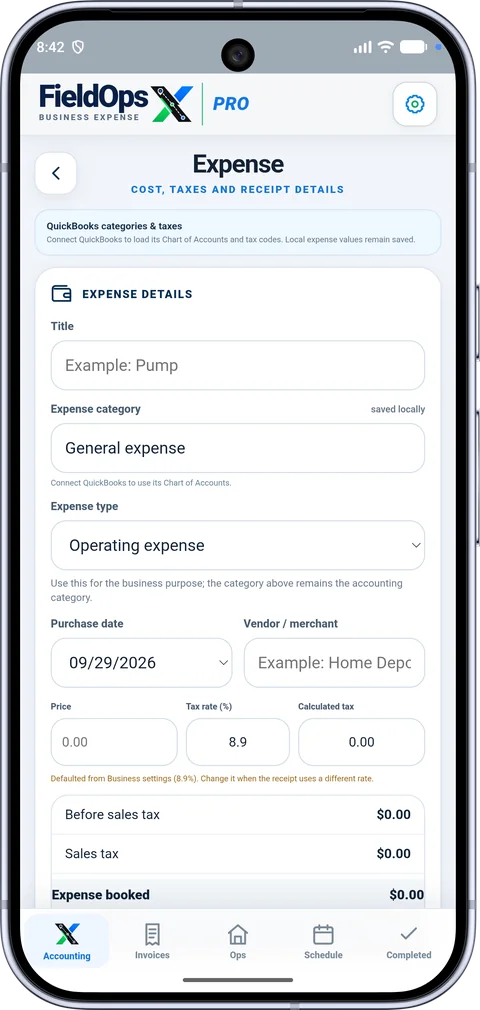
Add an expense from the job, retain the link to that job, and use the expense ledger to find it later. A draft remains separate from a finalized expense until you finish saving it.
Add a photo or PDF supplier receipt while recording the expense.
Keep the expense linked to the correct job and selected provider accounts.
Review the saved expense and accounting/receipt status without re-entering the purchase.
With Wave or QuickBooks connected, use the provider’s available categories and taxes. Reuse the business’s existing tax definitions, choose the account used to pay, and check the confirmed sync result.
Explore the integration and pricing details before choosing your setup.
Understand the supported connection and accounting steps.
Explore wave accountingSee company setup and supported workflows.
Explore quickbooks onlineReview the published plans, trial and referral program.
Explore pricingGive the expense a clear title or merchant, enter the amount and receipt taxes, and select the job it belongs to. Attach a receipt photo or PDF so the purchase can be checked later. An expense that is not for a particular visit can stay as an operating expense instead of being assigned to an unrelated job.
The price you paid for a part and the price you bill are different decisions. Record the supplier receipt accurately, then review the customer invoice lines separately. For example, a replacement part can have a purchase receipt linked to the job and a service or parts charge on the invoice. Saving the receipt should not require changing its tax amounts to match a customer’s billing request.
When connected to Wave or QuickBooks Online, select the expense category and the account used to pay. Check the sync and receipt-upload status after saving. If an expense is still pending, open its details and review the message before trying again. Keep original receipts for your own records.
PROFESSIONALLY BUILT FOR OWNER-OPERATORS
Choose the workflow that fits your business, then try it with your own working day.